Report a TestFlight issue
Send the build number, device model, iOS version, scan source tested, and the exact step that failed.
Report TestFlight issueCustomer service for app testing and launch support
WaveTrace Mobile is the native mobile companion for the desktop signal lab console. This support hub helps testers report issues, verify device behavior, and request assistance without sending unnecessary personal data.
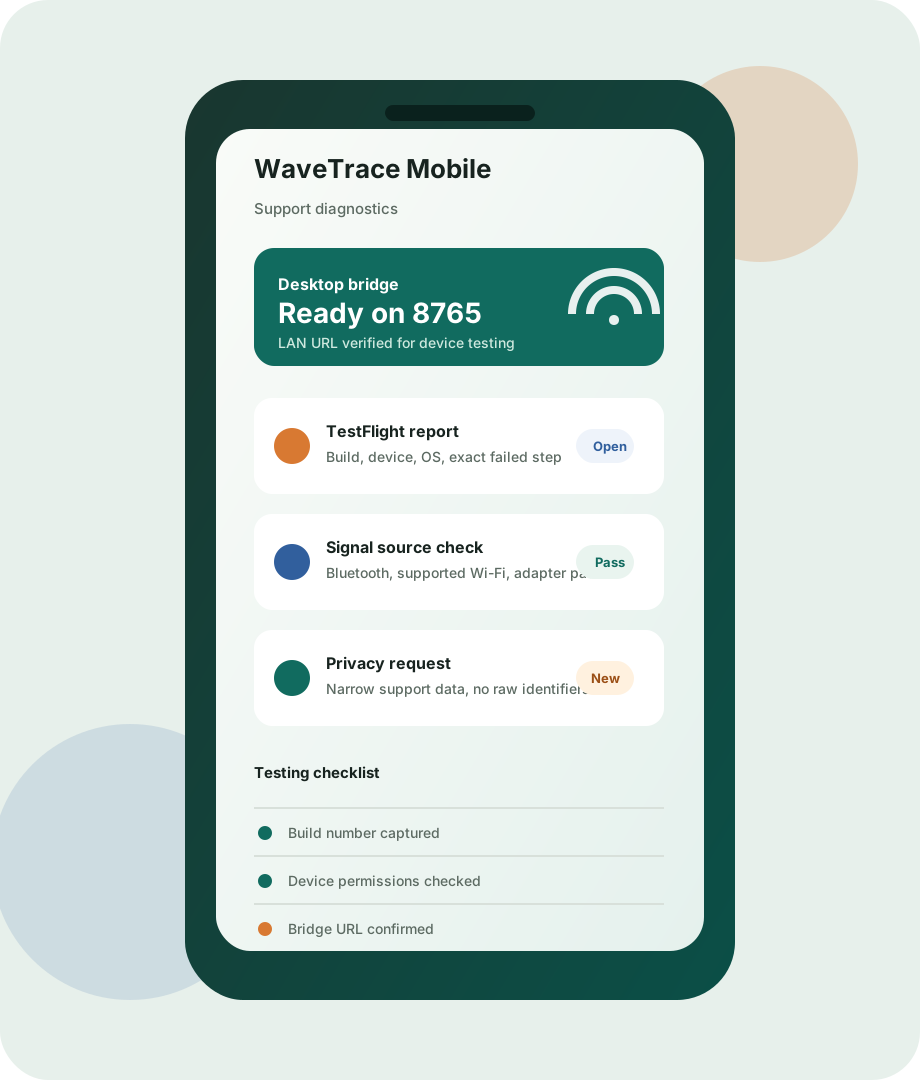
App overview
WaveTrace Mobile captures signals available to the phone, packages observations with
the shared signal contract, and sends authorized test results to the
desktop API at /api/mobile/ingest.
The app is built for authorized device inventory, site surveys, lab testing, and personal environments. It should not be used to identify or track a person without consent.
iOS supports Bluetooth and approved platform capabilities, but normal App Store apps cannot perform general Wi-Fi access point scans. Android and desktop testing can expose different signal classes depending on hardware, permissions, and OS rules.
Support actions
Send the build number, device model, iOS version, scan source tested, and the exact step that failed.
Report TestFlight issueInclude the desktop console URL, Mac LAN address, and whether the local dashboard opens on port 8765.
Get bridge helpShare the phone model, OS version, adapter hardware if any, and the signal class you need verified.
Request device testAsk about support data, scan observations, local storage, deletion requests, or App Store privacy details.
Contact privacy supportTestFlight and device testing
Open TestFlight and include the WaveTrace Mobile version and build number from the app listing.
List the device model, OS version, permissions granted, and whether you tested on device or simulator.
For phone-to-Mac testing, use the Mac LAN address for the desktop console. The simulator can usually use http://127.0.0.1:8765.
Share the error message, a screenshot if helpful, and the scan source involved. Do not send raw personal identifiers unless support specifically asks for them.
Request template
A clear report helps support distinguish app behavior, OS permission limits, and desktop bridge setup issues.
WaveTrace Mobile support request

Build:
Device model:
OS version:
Testing channel: TestFlight / simulator / Android debug
Desktop console URL:
Signal source tested:
What happened:
What you expected:
Screenshot or exact error:
Privacy and safety
WaveTrace Mobile support asks for build, device, permission, and bridge details so issues can be reproduced. Avoid sending raw MAC addresses, private payloads, precise location, or unrelated screenshots.
Signal profiles should describe authorized devices, places, adapters, or test environments. They are not proof of a human identity.